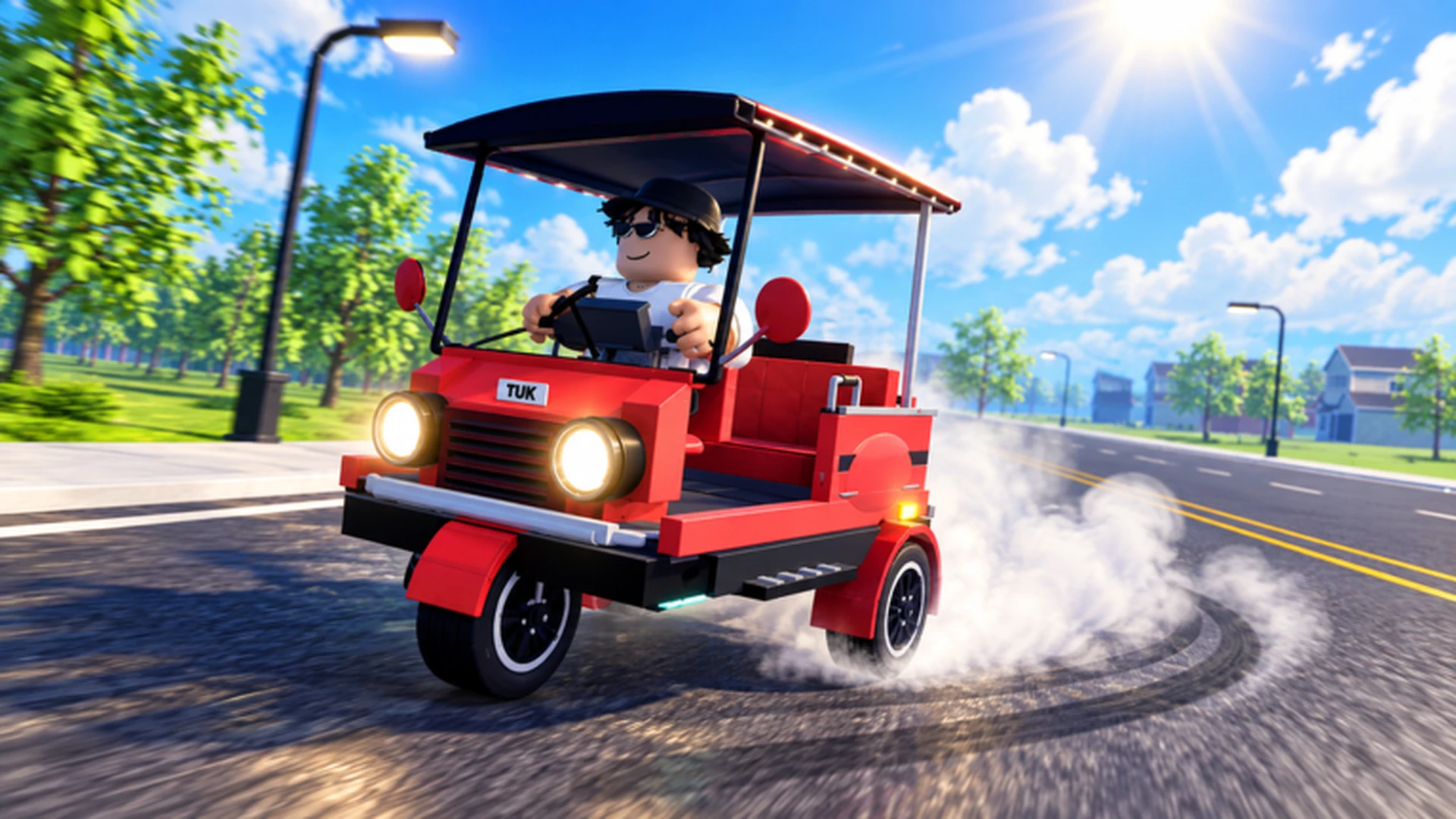
- Drive A Tuk Tuk mobile controls use on-screen steering, acceleration, and brake buttons.
- Small steering inputs beat long swipes; release acceleration before sharp turns.
- Handling upgrades help mobile players most, since touch steering is less precise than keys.
- Stop the vehicle before opening menus or changing parts to avoid accidental movement.
- Controller support exists on mobile if you prefer analog sticks over touch.
Mobile Controls Overview
Drive A Tuk Tuk, the Roblox Tuk Tuk driving simulator by Lumora Inc., is fully playable on phones and tablets through a touch interface. Instead of W, A, S, and D keys, mobile players drive with on-screen controls layered over the camera view. The layout stays consistent with standard Roblox vehicle controls, so once you learn the button positions, driving becomes second nature.
Video Highlights:
- Official gameplay trailer shows the core driving loop on Roblox
- Demonstrates acceleration, steering, and drifting in traffic
- Highlights customization and upgrade flow referenced throughout this guide
Before your first real route, spend two minutes in a low-traffic area testing each on-screen button. Learning control response while parked is far cheaper than crashing during a money run.
The core mobile interface maps four actions to the screen:
| Action | Mobile Input | Notes |
|---|---|---|
| Accelerate / move forward | On-screen forward control | Hold for continuous speed |
| Steer | On-screen steering control | Use short, small movements |
| Brake / reverse | On-screen brake or reverse control | Tap to slow, hold to reverse |
| Interact | On-screen interaction button | Used for tasks and pickups |
Exact button placement can vary with screen size, device orientation, and Roblox UI updates. Refer to the buttons actually shown on your screen rather than memorized positions.
How Each Control Works in Practice
Understanding what each control does is only half the equation. Driving a three-wheeled Tuk Tuk on touch means adjusting habits you may have built on keyboard.
Steering Control
- Small inputs work best on touch screens
- Long holds cause wide, drifting turns
- Pair with reduced speed in corners
Accelerate Control
- Hold for sustained forward motion
- Release briefly before sharp turns
- Reapply smoothly after the apex
Brake / Reverse
- Tap for gradual slowing
- Hold to reverse out of collisions
- Critical on downhill and crowded roads
Interact Button
- Handles pickups and task actions
- Reachable near the driving controls
- Stop fully before complex interactions
| Situation | Recommended Control Use | Common Mistake |
|---|---|---|
| Sharp turn ahead | Release accelerate, tap brake, steer in small moves | Holding accelerate through the turn |
| Collided with obstacle | Hold reverse briefly, then steer out | Spamming accelerate into the wall |
| Crowded area | Feather accelerate and brake | Full-speed blind driving |
| Straight open road | Hold accelerate steadily | Unnecessary micro-steering |
If your Tuk Tuk feels hard to turn on touch, invest in the Handling upgrade early. It makes steering respond more predictably, which directly compensates for the lower precision of touch input.
Step-by-Step: Mastering Touch Driving
Follow this progression to go from struggling with touch controls to completing routes reliably.
Practice in a Safe Area
Find an open space with no traffic or obstacles. Practice accelerating, braking, reversing, and turning in both directions until each motion feels predictable.
Drill Steering Discipline
Run a short loop and force yourself to use short steering inputs only. Break the habit of holding a direction continuously through corners.
Combine Speed and Braking
Add acceleration back in. Practice releasing the throttle before each turn, then smoothly reapplying it once the vehicle straightens out.
Run Real Routes
Take the practiced habits onto actual earning routes and quests. Focus on consistency over raw speed in the first sessions.
Upgrade to Match Your Control Style
Once comfortable, invest earnings in Handling, then Acceleration, then Braking — the order that best supports mobile driving precision.
If touch steering still frustrates you, Roblox supports controller input on capable mobile devices. Use the left analog stick for steering with gradual movements, and follow the on-screen prompts for acceleration and braking.
Mobile-Specific Settings and Upgrade Priorities
Mobile performance depends on both your control habits and how you spend upgrade currency. Touch drivers should weight their builds differently than keyboard players.
| Upgrade | Mobile Priority | Why It Matters on Touch |
|---|---|---|
| Handling | High | Compensates for lower touch steering precision |
| Acceleration | High | Recovers speed quickly after touch-induced slowdowns |
| Braking | Medium | Prevents overshooting on busy mobile routes |
| Top Speed | Medium | Useful only once control is comfortable |
| Cosmetic | Low | Optional after core performance is set |
Frame drops and input lag make touch driving significantly harder. Close background apps and lower Roblox graphics settings if steering feels delayed — responsiveness matters more than visual detail.
Always bring the Tuk Tuk to a full stop before opening build menus or changing parts. Touch screens make accidental taps on driving controls easy, and a moving vehicle can derail your selections.
Mobile Driving Readiness Checklist
Confirm you have internalized each skill before pushing into longer routes and faster builds.
Mobile Mastery Milestones:
- Turn both directions without collisions using small inputs
- Release acceleration before every sharp turn
- Reverse out of obstacles without panicking
- Complete a full route with zero crashes
- Apply upgrades in the mobile-friendly priority order
FAQ
Q: What are the main Drive A Tuk Tuk mobile controls?
Mobile players drive with on-screen controls: a forward button for acceleration, a steering control for turning, a brake and reverse control, and an interaction button for pickups and tasks. Exact placement varies by device and Roblox UI updates.
Q: Can I use a controller instead of touch controls on mobile?
Yes. On supported devices, Roblox lets you use a controller: steer with the left analog stick and follow the displayed prompts for acceleration, braking, reversing, and interaction. Gradual stick movement gives smoother cornering than touch swipes.
Q: Why does my Tuk Tuk keep drifting off the road on mobile?
Touch steering responds best to small, short inputs. If you hold the steering control continuously, the Tuk Tuk swings wide. Release acceleration before turns, make small steering corrections, and consider investing in the Handling upgrade early.
Q: Which upgrades should mobile players buy first?
Prioritize Handling and Acceleration first. Handling compensates for reduced touch precision, and Acceleration restores speed quickly after the frequent slowdowns that come with mobile driving. Add Braking next, and hold Top Speed for later once control feels solid.