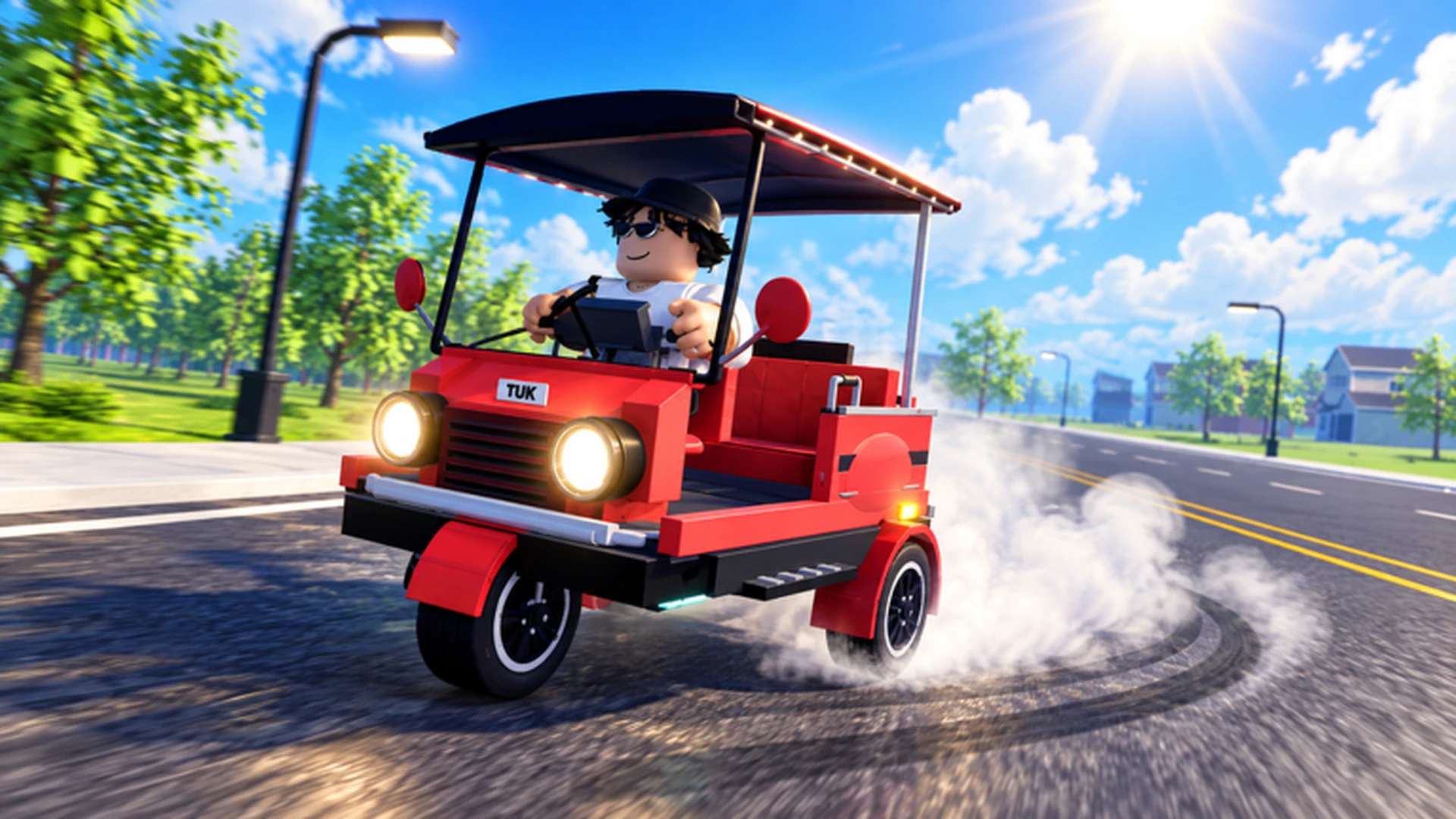
- Drive A Tuk Tuk controls differ by platform: keyboard on PC, on-screen buttons on mobile, and analog stick on controller.
- PC basics: Use W to accelerate, A/D to steer, and S to brake or reverse.
- Mobile tip: Keep steering inputs small and ease off acceleration before sharp turns.
- Controller tip: Use gradual left-stick movement for smoother cornering at speed.
- Best practice: Learn controls in a safe area before running long earning routes.
Drive A Tuk Tuk Controls: Platform Overview
Drive A Tuk Tuk, the Roblox Tuk Tuk driving simulator by Lumora Inc., uses Roblox's standard control layouts, which means your inputs change depending on whether you play on computer, mobile, or controller. Before you can focus on earning cash, completing quests, or upgrading your Tuk Tuk, you need a solid grip on the basic driving inputs.
Video Highlights:
- See the core driving loop in action: accelerate, steer, earn, and upgrade
- Watch how the Tuk Tuk handles turns and long routes
- Get a feel for the game's speed and customization systems
Each platform has its strengths. Keyboard control is the most direct, the mobile interface keeps everything on screen with large touch targets, and the controller offers analog precision for steering. The table below summarizes the core driving inputs for each platform.
| Action | PC (Keyboard) | Mobile | Controller |
|---|---|---|---|
| Accelerate / Forward | W | On-screen forward control | Displayed acceleration prompt |
| Turn Left | A | On-screen steering control | Left stick (left) |
| Brake / Reverse | S | On-screen brake or reverse control | Displayed brake or reverse prompt |
| Turn Right | D | On-screen steering control | Left stick (right) |
| Interact | On-screen prompt | On-screen interaction button | Displayed interaction prompt |
If you switch between devices, spend a few minutes in a low-traffic area re-learning steering sensitivity. A Tuk Tuk that felt stable on keyboard can feel twitchy on a touch screen until you adjust your input habits.
PC Keyboard Controls in Detail
Keyboard control is the most precise way to drive in Drive A Tuk Tuk. The WASD layout handles all core movement, while menus and upgrades work through on-screen clicks. The key to smooth keyboard driving is not holding keys down continuously, but pulsing your inputs.
Key techniques for keyboard drivers:
- Pulse your steering: Tap A or D in short bursts on narrow turns instead of holding the key.
- Feather W and S: Modulate acceleration and braking to avoid wheel-spin-like slides out of corners.
- Brake before the turn, not during: Enter corners slow, exit fast.
- Use S for controlled reversing: Short reverse taps work better than holding S when repositioning.
| Driving Scenario | Recommended Input | Common Mistake |
|---|---|---|
| Sharp corner | Tap-steer A/D, ease off W | Holding steer while at full speed |
| Long straight | Hold W steadily | Over-correcting with small taps |
| Missed turn | Short S taps to reverse | Holding S and spinning the camera |
| Crowded area | Alternating W/S with light steering | Full-speed steering through traffic |
| Route restart | Controlled S reverse, then W | Panicking and mashing inputs |
At higher upgrade levels, the starter Tuk Tuk's handling changes noticeably. After buying speed or acceleration upgrades, revisit a familiar route before attempting long money runs, since your old braking distances no longer apply.
Mobile and Controller Controls
Mobile players get a fully on-screen interface with dedicated forward, steering, brake/reverse, and interaction controls. Controller players steer with the left analog stick and follow the on-screen action prompts for acceleration, braking, and interaction.
Mobile Driving
- On-screen steering control for direction
- Dedicated forward and brake/reverse buttons
- Interaction button for tasks and pickups
- Best with small steering inputs, not full swipes
Controller Driving
- Left analog stick for smooth steering
- On-screen prompts for accelerate, brake, and interact
- Gradual stick movement gives the best cornering
- Ideal for long sessions and precision driving
Mobile-specific tips:
- Release the forward control slightly before a sharp turn, then reapply on exit.
- Keep both thumbs anchored so steering inputs stay consistent.
- Stop the Tuk Tuk completely before opening upgrade or customization menus to avoid accidental movement.
Controller-specific tips:
- Use partial stick deflection for gentle curves and full deflection only for tight turns.
- Combine gradual steering with early braking for the most consistent corner lines.
- Follow the displayed prompts, since button assignments follow standard Roblox vehicle controls.
Handling upgrades improve steering response on every platform. If your Tuk Tuk feels hard to turn or frequently leaves the road, invest in a handling upgrade before blaming your device's controls.
Step-by-Step: Mastering the Controls
Follow this progression to go from first-time driver to confident route runner.
Practice in a Safe Area
Before attempting earning routes, practice accelerating, braking, steering, and reversing in an open, low-traffic area. Build enough control to complete a turn without collisions.
Learn One Familiar Route
Pick a short, repeatable route and drive it until you can complete it without navigation mistakes. Familiarity with a route reduces the control demands placed on you.
Add Earning Activities
Once your driving is stable, start completing driving and delivery tasks with the starter Tuk Tuk. Use early earnings for acceleration, handling, or braking upgrades.
Re-Learn After Upgrades
After each meaningful performance upgrade, run your familiar route again. Adjust your braking points and steering inputs to match the improved speed and response.
Expand to Longer Routes
With comfortable control and a performance build, move on to longer routes and races where upgraded speed and handling both pay off.
Players who master control basics before chasing speed upgrades consistently complete more runs per session, which compounds into faster earnings and quicker vehicle unlocks.
Controls Troubleshooting Checklist
Control problems in Drive A Tuk Tuk usually come down to input habits, device settings, or upgrade imbalance rather than the game itself. Work through this checklist whenever driving feels off.
Controls Fix Checklist:
- Practice a full acceleration, brake, and reverse cycle in a safe area
- Confirm steering inputs use short pulses, not long holds
- Check whether the Tuk Tuk leaves the road on familiar turns
- Invest in a handling upgrade if steering feels unresponsive
- Stop the vehicle fully before opening menus or changing parts
- Re-run a familiar route after every performance upgrade
| Problem | Likely Cause | Recommended Fix |
|---|---|---|
| Tuk Tuk misses turns | Steering held too long at speed | Use short steering pulses, brake earlier |
| Overshooting destinations | Weak braking, high speed | Brake before the turn; consider a braking upgrade |
| Hard to control after upgrade | New speed exceeds old habits | Re-practice a familiar route before long runs |
| Accidental menu movement | Vehicle moving during menu use | Stop completely before opening menus |
| Sluggish steering response | Low handling stat | Prioritize a handling upgrade in the shop |
Controls FAQ
Q: What are the basic Drive A Tuk Tuk controls on PC?
On PC, use W to accelerate or move forward, A and D to steer left and right, and S to brake or reverse. Menus, upgrades, and customization are handled through on-screen clicks.
Q: How do Drive A Tuk Tuk mobile controls work?
Mobile uses an on-screen interface with a forward control, a steering control, a brake or reverse control, and an interaction button. Keep steering inputs small and release acceleration before sharp turns for the best results.
Q: Can I use a controller to play Drive A Tuk Tuk?
Yes. Steer with the left analog stick and follow the displayed on-screen prompts for acceleration, braking or reversing, and interaction. Gradual analog-stick movement produces smoother cornering than quick flicks.
Q: Why does my Tuk Tuk feel harder to control after upgrades?
Speed and acceleration upgrades change braking distances and steering demands. After any meaningful performance upgrade, re-run a familiar route to recalibrate your inputs before starting long earning runs or races.