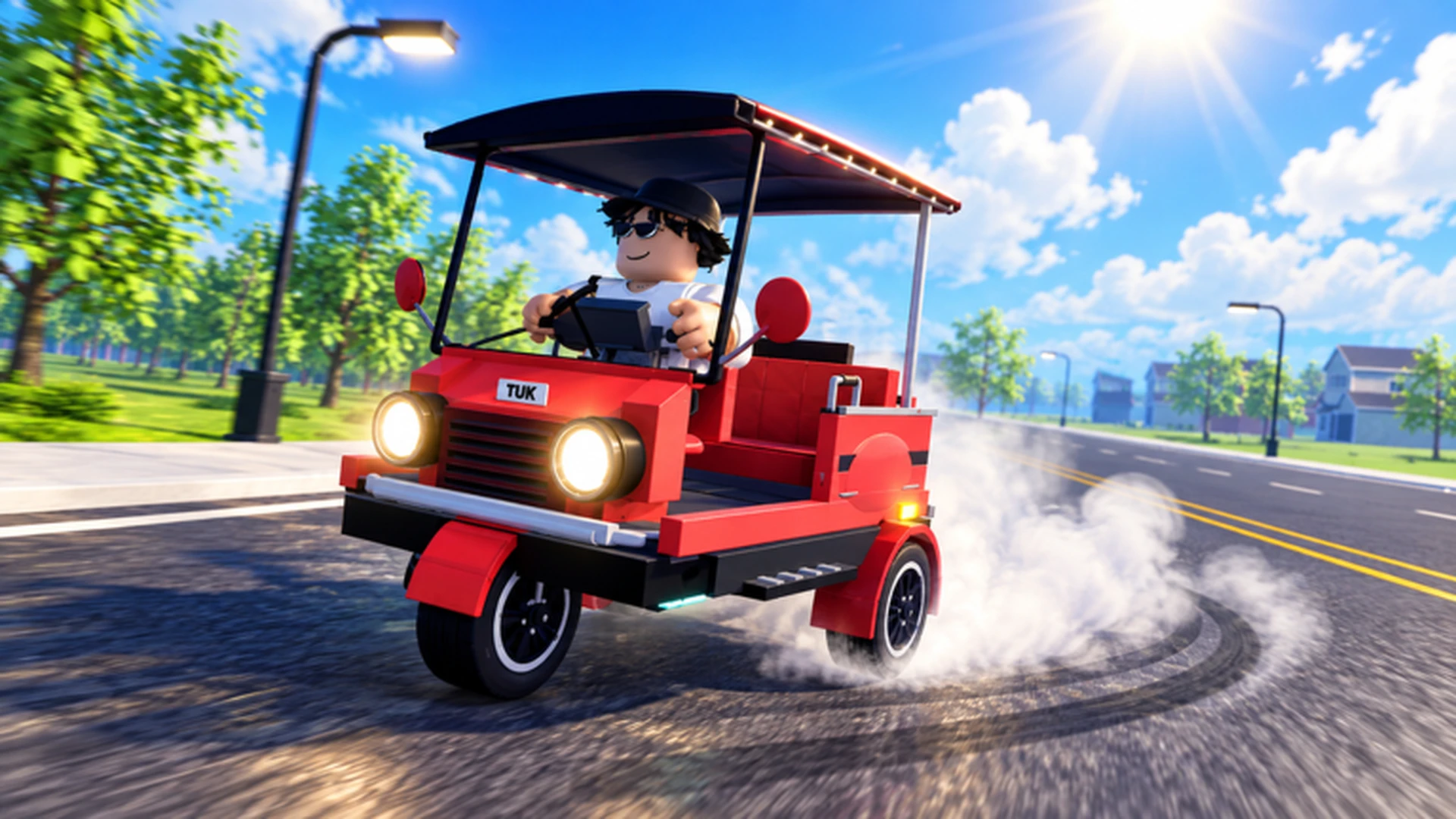
- How to drive in Drive A Tuk Tuk: use W/A/S/D on PC, on-screen controls on mobile, or left stick on controller.
- Steering: use short, small steering inputs near turns instead of holding a direction.
- First priority: practice accelerating, braking, and reversing in a safe area before long routes.
- Core loop: drive, earn cash, upgrade performance, then customize appearance.
- Environment: weather and day-night cycles change road feel, so adjust speed accordingly.
Drive A Tuk Tuk Basic Controls by Platform
Drive A Tuk Tuk is a Roblox three-wheeler driving simulator by Lumora Inc. where the core loop is driving, earning cash, upgrading performance, and customizing your Tuk Tuk. Controls differ by platform, so start with the layout that matches how you play.
Video Highlights:
- Official gameplay trailer showing the driving loop and environments
- Red Tuk Tuk drifting on open roads with day-night visuals
- Overview of earning, upgrading, and customizing systems
| Action | PC | Mobile | Controller |
|---|---|---|---|
| Accelerate | W | Forward button | Displayed accelerate prompt |
| Turn left | A | Steering control (left) | Left analog stick |
| Turn right | D | Steering control (right) | Left analog stick |
| Brake / reverse | S | Brake / reverse button | Displayed brake prompt |
| Interact | Displayed prompt | On-screen interact button | Displayed interaction prompt |
| Open menus | Menu button | On-screen menu | Menu button |
Use short steering inputs when approaching narrow turns instead of holding a direction continuously. Release acceleration before sharp corners, especially on mobile.
How to Drive: Step-by-Step for New Players
Follow this sequence during your first sessions to build solid control before chasing cash and upgrades.
Practice in a safe area
Practice accelerating, braking, steering, and reversing away from traffic. Build enough control to turn without collisions and hold a steady driving line.
Learn the earning loop
Use the starter Tuk Tuk to complete early driving activities and understand how distance and speed translate into cash.
Drive short, familiar routes
Repeat routes you know well. Familiar roads reduce navigation mistakes and make income easier to repeat than risky long runs.
Upgrade the current bottleneck
Spend early cash on the part that limits you most — usually acceleration or handling — instead of spreading budget thin.
Expand to longer routes
Once movement and control upgrades feel comfortable, move to longer routes and races that reward a performance build.
Stop the Tuk Tuk completely before opening upgrade or customization menus to avoid accidental movement while browsing parts.
Driving Tips for Each Platform
Each platform has quirks that affect how your Tuk Tuk handles. Match your technique to your input device.
PC Driving
- Most direct control with WASD
- Tap keys lightly for steering
- Easy menu navigation for upgrades
Mobile Driving
- Keep steering movements small
- Release acceleration before turns
- Prioritize handling upgrades early
Controller Driving
- Use gradual analog-stick movement
- Smoother cornering at higher speed
- Follow on-screen action prompts
| Situation | Recommended Technique | Upgrade That Helps |
|---|---|---|
| Tight turns | Slow down first, short inputs | Handling |
| Frequent stops | Accelerate smoothly after each stop | Acceleration |
| Downhill or crowded roads | Brake early, keep distance | Braking |
| Long straight routes | Build speed gradually | Top speed |
Drive A Tuk Tuk features changing environments, weather, and day-night cycles. Reduce speed during low-visibility or low-grip conditions until you know how your Tuk Tuk responds.
From Driving to Progression
Once basic driving feels natural, connect it to the game's progression systems: daily and weekly quests, races, and cash-based upgrades.
| Activity | What It Rewards | Best Stage |
|---|---|---|
| Regular driving / delivery tasks | Steady starting cash | Early game |
| Daily and weekly quests | Bonus rewards and variety | All stages |
| Short familiar routes | Consistent repeatable income | Early to mid game |
| Races | Speed-based rewards | Mid to late game |
| Long routes with upgrades | High efficiency per run | Mid to late game |
Invest in acceleration and handling first, braking next, then top speed. Treat cosmetic customization — colors, wheels, lights — as optional spending after core performance is solid.
Beginner Driving Milestones:
- Turn through narrow corners without collisions
- Complete the first driving or delivery task
- Buy your first performance upgrade
- Finish a daily quest
- Repeat a familiar route five times cleanly
FAQ
Q: How do you drive a Tuk Tuk in Drive A Tuk Tuk on PC?
On PC, press W to accelerate, A and D to steer left and right, and S to brake or reverse. Use short steering inputs near corners rather than holding a direction.
Q: What are the mobile controls in Drive A Tuk Tuk?
Mobile uses an on-screen driving interface: a forward control for acceleration, a steering control, and buttons for braking, reversing, and interacting. Keep steering movements small and release acceleration before sharp turns.
Q: Which upgrade should I buy first as a new driver?
Most new players benefit from acceleration first, then handling. Braking and top speed come later, and cosmetic customization should wait until your performance setup is reliable.
Q: Does weather or time of day affect driving?
The game includes different environments, weather, and day-night changes. Conditions can change visibility and road feel, so slow down until you know how your Tuk Tuk handles in each environment.