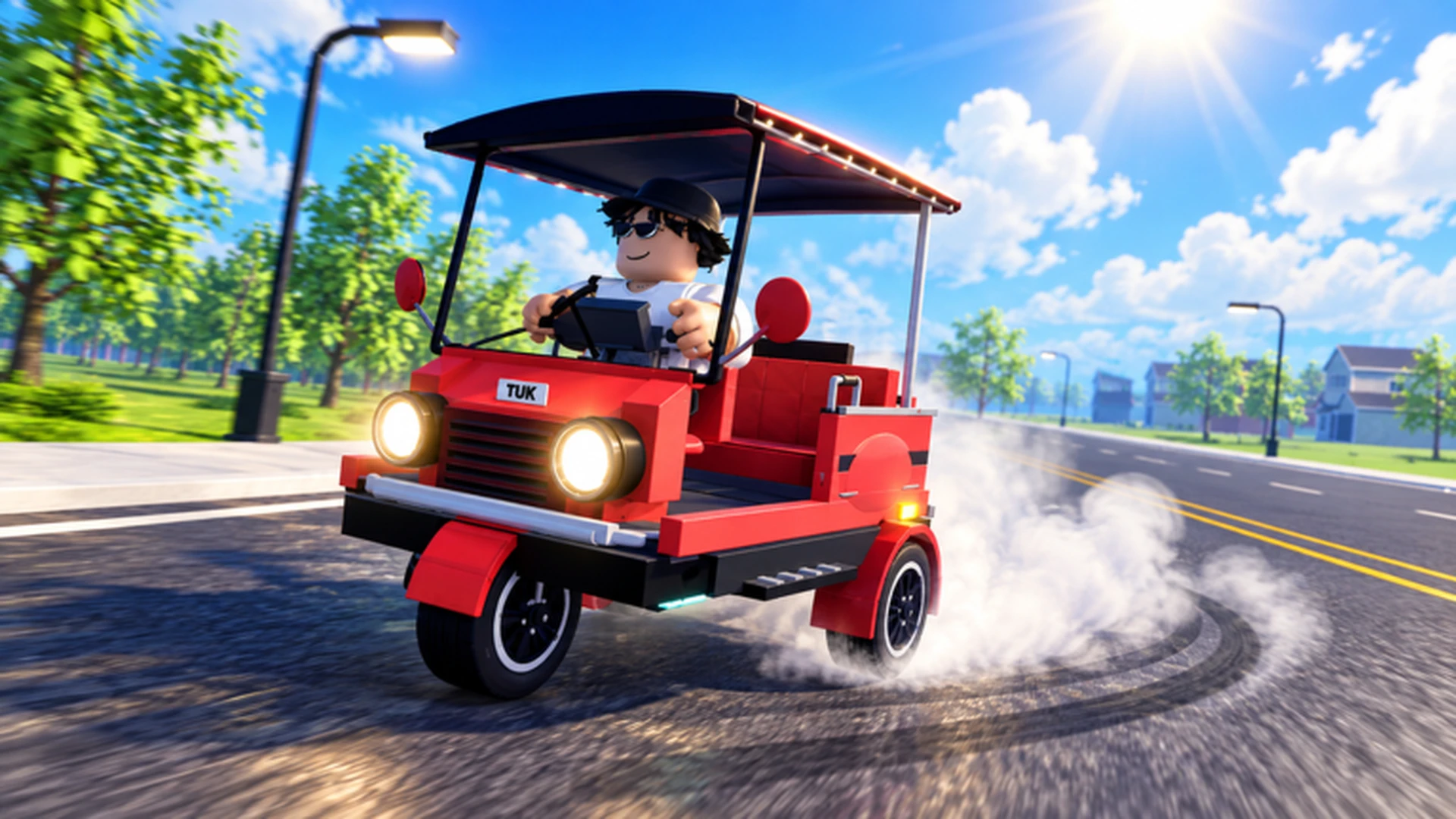
- Drive A Tuk Tuk driving controls differ across PC, mobile, and controller platforms
- PC basics: W to accelerate, A/D to steer, S to brake or reverse
- Mobile players should use small steering inputs and release the throttle before sharp turns
- Controller users get smoother cornering from gradual left-stick movement
- Always stop the vehicle before opening menus or changing vehicle parts
Drive A Tuk Tuk Driving Controls Overview
Drive A Tuk Tuk is a Roblox driving simulator where you drive a three-wheeled Tuk Tuk, earn cash, upgrade performance, and complete quests. Because the game runs across platforms, the control layout changes depending on whether you play on a computer, phone, or controller. Learning the correct inputs early prevents wasted runs, missed turns, and accidental menu purchases.
Video Highlights:
- Official gameplay trailer showing the core driving loop
- Demonstrates acceleration, steering, and drifting on standard roads
- Shows customization and vehicle progression in action
The game rewards smooth, consistent driving over raw speed. Distance and speed both contribute to earnings, so a driver who maintains control earns more per session than one who crashes repeatedly. Mastering your platform's inputs is the first upgrade you get — and it costs nothing.
Practice accelerating, braking, steering, and reversing in a low-traffic zone before attempting longer routes or races. Building muscle memory first makes every later activity easier.
Full Control Mappings by Platform
Each platform uses a different input scheme. The tables below summarize the confirmed driving inputs for computer, mobile, and controller play.
Computer (Keyboard) Controls
| Action | Input | Usage Tip |
|---|---|---|
| Accelerate / move forward | W | Tap in short bursts in tight areas |
| Turn left | A | Use brief presses near corners |
| Brake / reverse | S | Hold to reverse out of obstacles |
| Turn right | D | Combine with W for gentle curves |
| Open menus | On-screen menu button | Stop the vehicle first |
| Select / confirm | Mouse click | Use for upgrades and customization |
Mobile (Touchscreen) Controls
| Action | Input | Usage Tip |
|---|---|---|
| Accelerate | On-screen forward control | Release before sharp turns |
| Steer | On-screen steering control | Keep movements small |
| Brake / reverse | On-screen brake or reverse control | Useful in crowded zones |
| Interact | On-screen interaction button | Tap near objectives and shops |
| Menus | On-screen menu icons | Park safely before browsing |
Controller (Gamepad) Controls
| Action | Input | Usage Tip |
|---|---|---|
| Steer | Left analog stick | Tilt gradually for smooth cornering |
| Accelerate | Displayed acceleration prompt | Ease into throttle on turns |
| Brake / reverse | Displayed brake prompt | Use early before downhill corners |
| Interact | Displayed interaction prompt | Watch for on-screen prompts |
| Menus | Platform menu button | Confirm before exiting menus |
Controller and mobile inputs follow Roblox's displayed prompts, which can differ slightly between devices and updates. Always check the on-screen button labels in your current session rather than assuming a fixed layout.
How to Fix Common Control Problems
Most control complaints in Drive A Tuk Tuk come from three sources: over-steering at speed, holding acceleration through corners, and changing parts while the vehicle is still moving. Work through these steps to correct each issue.
Calibrate Your Steering Habit
Replace continuous steering holds with short, repeated inputs. Approaching a narrow turn, tap A or D (or nudge the stick) instead of holding the direction, which reduces overcorrection and keeps the Tuk Tuk on the road.
Separate Throttle and Steering
Release acceleration before sharp corners, complete the turn, then reapply throttle. This is especially important on mobile, where simultaneous throttle and steering inputs often cause wide, uncontrolled turns.
Brake Before You Need To
Brake earlier than feels necessary on downhill routes and in crowded areas. Improved braking control shortens stopping distance, but good timing matters more than any single upgrade.
Park Before Using Menus
Stop the Tuk Tuk completely before opening upgrade, customization, or vehicle menus. A rolling vehicle plus an open menu is the most common cause of accidental collisions and wasted parts purchases.
If the vehicle feels hard to turn or frequently leaves the road, invest in handling upgrades early. Handling improvements make every input more predictable, which benefits all platforms — especially mobile players.
Platform Comparison: Which Input Suits Your Playstyle
| Platform | Steering Precision | Learning Curve | Best For |
|---|---|---|---|
| Computer / keyboard | High | Low | Direct control, racing, route learning |
| Mobile / touchscreen | Medium | Medium | Casual play, short sessions |
| Controller | High | Low | Long sessions, smooth cornering |
Keyboard Drivers
- Most direct control scheme
- Best for racing and speed builds
- Fast steering correction with A/D taps
Mobile Drivers
- Portable and accessible
- Prioritize handling and braking upgrades
- Small steering inputs prevent wide turns
Controller Drivers
- Smoothest analog cornering
- Comfortable for long farming routes
- Gradual stick input suits higher speeds
Your vehicle, upgrades, and progress carry across platforms on Roblox. If mobile driving feels limiting, practice the same routes on a computer to learn them, then return to mobile with better route knowledge.
Driving Control Checklist
Run through this checklist in your first few sessions to build solid control habits before investing heavily in upgrades.
Control Mastery Goals:
- Practice accelerating, braking, and reversing in a safe area
- Complete a full route without collisions
- Use short steering inputs through five consecutive corners
- Park fully before opening any upgrade or customization menu
- Complete one daily quest using controlled, steady driving
Steady, controlled driving produces more consistent income than bursts of speed interrupted by crashes. Reinvest early earnings into acceleration, handling, or braking before spending on cosmetics.
Controls FAQ
Q: What are the basic Drive A Tuk Tuk driving controls on PC?
On computer, press W to accelerate or move forward, A and D to steer left and right, and S to brake or reverse. Menus are opened through the on-screen menu, and mouse clicks handle selection and confirmation.
Q: How do mobile controls work in Drive A Tuk Tuk?
Mobile uses on-screen controls: a forward control for acceleration, a steering control for turning, a brake or reverse control, and an interaction button. Keep steering movements small and release acceleration before sharp turns for the best results.
Q: Can I use a controller to play Drive A Tuk Tuk?
Yes. Use the left analog stick to steer and follow the displayed acceleration, brake, and interaction prompts. Gradual stick movement gives smoother cornering and better control at higher speeds.
Q: Why does my Tuk Tuk keep missing turns?
Usually it is over-steering combined with held throttle. Release acceleration before the corner, use short steering inputs instead of holding a direction, and consider early handling or braking upgrades if the vehicle still feels unpredictable.