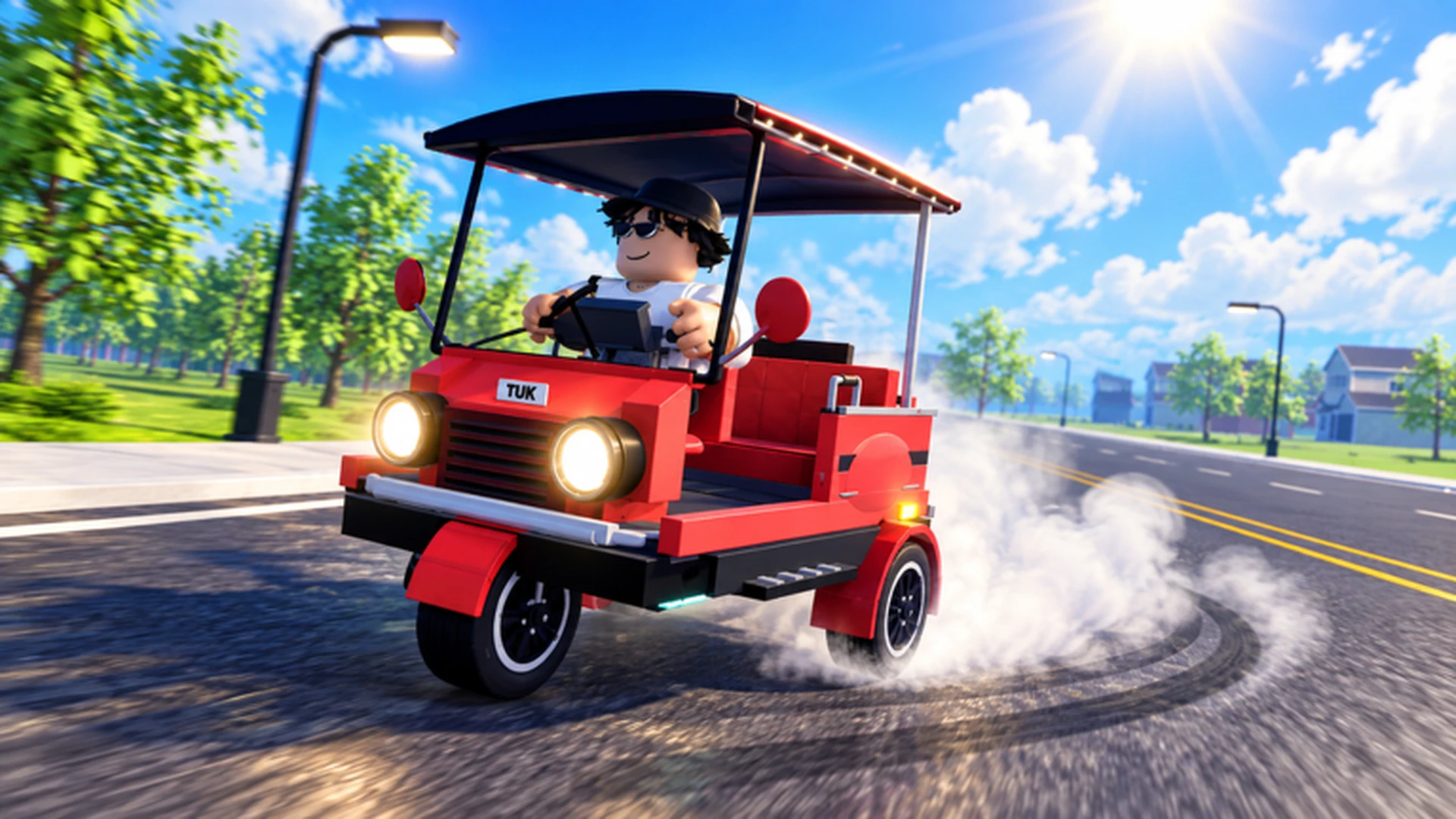
- Drive A Tuk Tuk keyboard controls use WASD for accelerate, steer, and brake on PC.
- W moves the Tuk Tuk forward, A/D steer, and S brakes or reverses.
- Short steering inputs prevent oversteering on narrow turns.
- Menus and upgrades are handled through on-screen buttons, not extra keys.
- Mobile and controller layouts are also supported if you switch platforms.
Drive A Tuk Tuk Keyboard Controls Overview
Driving on a computer gives you the most direct control over your Tuk Tuk. The keyboard layout in Drive A Tuk Tuk on Roblox follows the standard Roblox vehicle scheme, so if you have driven any simulator before, the basics will feel familiar within a few minutes.
Video Highlights:
- Official gameplay trailer showing the core driving loop
- Demonstrates how steering and speed respond during road driving
- Shows the Tuk Tuk earning cash and upgrading performance
- Highlights customization options like colors, wheels, and lights
The table below covers the core keyboard inputs you will use in almost every session.
| Action | Key | Usage Frequency |
|---|---|---|
| Accelerate / move forward | W | Constant |
| Turn left | A | Very high |
| Brake or reverse | S | High |
| Turn right | D | Very high |
| Interact / enter vehicle | On-screen prompt or E when displayed | Situational |
| Open menus and upgrades | On-screen menu buttons | Situational |
Practice accelerating, braking, steering, and reversing in a safe open area before attempting longer cash routes. Building smooth control first saves you from collisions that interrupt your earning loop.
Steering Techniques for Every Turn Type
Keyboard steering is digital — the key is either pressed or released — so your timing matters more than your hardware. Tuk Tuks are light three-wheeled vehicles, which makes them responsive but also easy to oversteer at speed.
| Turn Type | Recommended Input | Common Mistake |
|---|---|---|
| Gentle curve | Tap A/D lightly, hold W | Holding steer too long |
| Sharp corner | Release W, tap steer, re-accelerate | Steering at full speed |
| Narrow gap | Feather steer in short bursts | Long continuous holds |
| Downhill turn | Tap S before the corner | Braking mid-turn only |
| Reverse out | Hold S, gentle steer | Oversteering while backing |
Use short steering inputs when approaching narrow turns instead of holding a direction continuously. Long holds at high speed are the most common cause of leaving the road and losing momentum.
Follow this cornering routine until it becomes muscle memory:
Lift off the accelerator
Release W slightly before the corner so speed drops naturally.
Tap the steer key
Press A or D in short bursts rather than one long hold.
Re-accelerate on exit
Press W again once the Tuk Tuk is straight, keeping the driving line stable.
Brake only when needed
Use S for tight corners or downhill sections where lifting off is not enough.
Keyboard vs Mobile vs Controller Layouts
Drive A Tuk Tuk is cross-platform, and each input method changes how the vehicle feels. Compare the layouts below before deciding where to focus your practice time.
| Input | Accelerate | Steer | Brake/Reverse | Best For |
|---|---|---|---|---|
| Keyboard | W | A / D | S | Precise control, races |
| Mobile | On-screen forward button | On-screen steering | On-screen brake button | Casual play on the go |
| Controller | Displayed acceleration prompt | Left analog stick | Displayed brake prompt | Smooth cornering |
Keyboard Players
- Most direct control of the Tuk Tuk
- Fast tap-steering for corrections
- Best suited for races and record runs
Mobile Players
- Keep steering movements small
- Release acceleration before sharp turns
- Comfortable for cash routes and quests
Controller Players
- Use gradual stick movement for cornering
- Smoother lines at higher speed
- Great for long driving sessions
Menus, upgrade purchases, and vehicle customization are handled through on-screen buttons on every platform. Stop the Tuk Tuk completely before changing parts so the vehicle does not roll while you browse.
Fixing Unresponsive or Awkward Controls
When a key does not respond or driving feels off, work through these checks in order — most issues come from the Roblox client rather than the game itself.
| Problem | Likely Cause | Fix |
|---|---|---|
| WASD does nothing | Focus on wrong window | Click the game window once, then retest |
| Vehicle steers one way | Sticky key or stuck input | Replug keyboard, check key bindings |
| No reverse | Pressing W instead of S | Hold S longer; reverse has a short delay |
| Choppy steering | Low frame rate | Lower graphics settings in Roblox |
| Controls reset | Rejoined session | Re-check Roblox default keybinds in settings |
Lowering graphics quality in Roblox settings improves frame rate, and a steadier frame rate makes keyboard inputs feel more responsive — especially helpful during sharp turns and busy areas.
Control Setup Checklist:
- Click the game window so keyboard input is captured
- Confirm WASD responds in a safe practice area
- Test braking and reverse with S
- Practice short steering taps on three turns
- Verify menus open through on-screen buttons
Keyboard Skills That Speed Up Progress
Good keyboard control directly improves your earning loop. Every crash, missed turn, or spin-out costs travel time, and travel time is what converts into cash, quest completion, and race results in the game's drive-earn-upgrade cycle.
| Skill | Practice Method | Progression Benefit |
|---|---|---|
| Clean cornering | Repeat one route 5 times | Fewer resets on cash routes |
| Steady throttle | Hold W with light taps on straights | Consistent travel speed |
| Quick reverse | Practice S in a tight spot | Faster recovery after mistakes |
| Route memory | Drive familiar loops repeatedly | Higher repeatable income |
| Controlled braking | Tap S before corners | Safer downhill driving |
Once your control is stable, put early cash into acceleration and handling upgrades before cosmetic customization. Better handling makes keyboard steering more forgiving on the routes you drive most.
Keyboard Controls FAQ
Q: What are the main Drive A Tuk Tuk keyboard controls?
On PC, W accelerates or moves forward, A turns left, S brakes or reverses, and D turns right. Menus and upgrades are handled through on-screen buttons rather than dedicated keys.
Q: Can I rebind the WASD keys?
Key rebinding is handled through the Roblox client settings rather than the game itself. Check Roblox's control settings menu if you prefer a non-default layout.
Q: Why does my Tuk Tuk oversteer on turns?
Keyboard steering is all-or-nothing, so holding A or D too long at high speed causes sharp turns. Use short taps, release W before corners, and invest in handling upgrades for more forgiving steering.
Q: Is keyboard better than mobile for racing?
Keyboard generally offers the most direct and repeatable control, which helps in races and record attempts. Mobile works well for casual routes, while controller analog steering gives smooth cornering for long sessions.